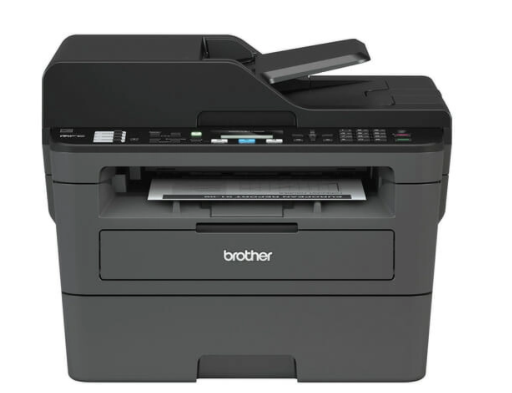
A Xerox printer stuck on waiting for a client in Lexington is a frustrating problem, especially when important documents need to be printed immediately. This message usually appears because the printer is waiting for data packets from a computer, print server, or network connection before it can complete the job. In most cases, the issue is caused by communication interruptions, incorrect port settings, driver problems, or print queue errors.
Fortunately, this is a common issue that can often be resolved without calling a technician. Many businesses experiencing Xerox VersaLink waiting for client errors discover that the solution is as simple as clearing a queue, updating a driver, or reconnecting the printer to the network. Understanding the root cause helps users restore productivity faster.
Quick Fixes to Clear a Xerox Printer Waiting Error
The fastest way to resolve a Xerox printer stuck on waiting for a client message is to clear all pending print jobs. Users should open the print queue on Windows or Mac, cancel any stalled documents, and then delete active jobs directly from the Xerox control panel. This process removes corrupted print jobs that may be preventing new jobs from processing.
Another effective solution is to perform a complete power cycle. Turn off the printer, computer, and network equipment, wait at least 30 seconds, and then restart each device in sequence. This refreshes network communication and often clears a Xerox VersaLink waiting for client conditions.
Quick troubleshooting steps include:
- Clear the print queue.
- Restart the printer.
- Restart the computer.
- Restart the router or network switch.
- Print a test page.
Many users asking why is my Xerox copier stuck on image processing waiting for clients to find that one of these basic steps resolves the issue immediately. Starting with simple fixes saves time before moving into advanced troubleshooting.
Restart the Print Spooler and Verify Network Communication
A frozen print spooler is one of the most overlooked causes of printing problems. The spooler temporarily stores print jobs before they are sent to the printer, and if it becomes corrupted, jobs can remain stuck indefinitely. This often contributes to a Xerox VersaLink waiting for client status.
To restart the spooler on Windows:
- Press Win + R.
- Type services.msc.
- Locate Print Spooler.
- Right-click and select Restart.
Users investigating Why is my Xerox copier stuck on image processing waiting for clients should also verify communication between the computer and printer. Running a ping test to the printer’s IP address helps confirm whether the network connection is active and stable. Successful responses indicate that communication is working correctly.
Verify IP Address Settings and Printer Ports
To verify settings, print a Configuration Page from the Xerox control panel and compare the printer’s IP address with the configured printer port on the workstation. The active port should match the current address exactly. If the addresses do not match, update the port configuration immediately.
Additional network checks include:
- Confirm subnet settings.
- Verify gateway information.
- Check DNS settings.
- Test network connectivity.
- Review SNMP configuration.
Many organizations troubleshooting Xerox VersaLink waiting for client issues discover that correcting an IP mismatch restores printing within minutes. This is particularly common after router replacements or network upgrades.
Update Xerox Drivers and Review Security Software
Outdated or generic drivers often create communication problems between operating systems and printers. Businesses researching why my Xerox copier is stuck on image processing waiting for clients frequently find that replacing generic drivers with official Xerox drivers resolves the issue. Xerox recommends using model-specific drivers or the Xerox Global Print Driver when appropriate.
To update drivers:
- Remove the existing printer.
- Download the latest Xerox driver.
- Install the new driver.
- Re-add the printer.
- Print a test page.
Security software can also interfere with printing. Firewalls and antivirus programs occasionally block ports used by Xerox printers, including Port 9100 and Port 515. If a Xerox printer stuck on waiting for client error to persist, temporarily testing with security software disabled can help identify the source of the problem.
Prevent Future Xerox Waiting for Client Errors
Preventing future communication problems requires a proactive approach. Assigning a static IP address ensures that the printer remains reachable even after network restarts. This simple adjustment greatly reduces the likelihood of recurring Xerox VersaLink waiting for client messages.
Best practices include:
- Use Ethernet instead of Wi-Fi when possible.
- Keep firmware updated.
- Update drivers regularly.
- Assign static IP addresses.
- Monitor print queues for stalled jobs.
These preventive measures improve reliability and reduce downtime across office printing environments.
Get Your Xerox Printer Back Online Quickly
A Xerox printer stuck on waiting for client is usually caused by communication failures, print spooler issues, driver conflicts, or network configuration problems. By clearing the print queue, restarting services, verifying IP settings, updating drivers, and reviewing security software, most businesses can resolve the issue quickly. Organizations that continue seeing a Xerox printer stuck on waiting for client messages after completing these steps should investigate advanced network settings or seek professional assistance.
Clear Choice Technical Services provides dependable copier repair services, copier rentals, copier leasing, copier sales, managed print support, thin client services, and industrial printing solutions throughout Lexington. Businesses receive flexible service options, transparent pricing, and responsive support designed to keep office technology running efficiently.
Call Clear Choice Technical Services of Lexington at (859) 212-3304 today for a competitive quote. Ask about a free demo trial and discover reliable copier solutions tailored to your business needs.